

Dylan B Proudfoot
good
 (26 reviews)
 30 Lessons
 6 Students
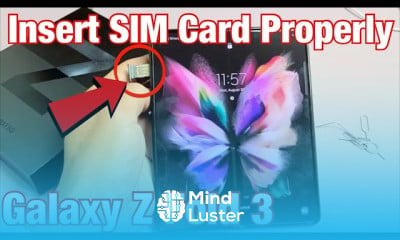
Galaxy Z Fold 3 setup basics course, in this course designed to provide participants with a comprehensive understanding of the essential steps required to set up and configure the Galaxy Z Fold 3 smartphone. Throughout this course, participants will learn the fundamental procedures necessary to prepare the device for use, ensuring a smooth and efficient setup process. Starting with an overview of unboxing and initial device setup, participants will gain insights into crucial tasks such as inserting the SIM card, powering on the device, and navigating through the initial setup wizard. Additionally, participants will learn how to connect the Galaxy Z Fold 3 to a Wi-Fi network, sign in with their Samsung account, and set up biometric security features like fingerprint or face recognition. Furthermore, this course will cover basic device settings, including language selection, date and time configuration, and adjusting other essential preferences to personalize the user experience. By the end of the course, participants will have acquired the knowledge and skills necessary to confidently set up their Galaxy Z Fold 3 device, empowering them to explore its full range of features and functionalities with ease. Join us as we embark on a journey to master the Galaxy Z Fold 3 Setup Basics, ensuring that you can maximize the potential of your device from the moment you unbox it.
 To Register in Course you have to watch at least 30 Second of any lesson
 Master the unboxing and initial setup process of the Galaxy Z Fold 3 smartphone for seamless device activation and configuration
Configure Wi-Fi, Samsung account, and biometric security features to enhance device security and connectivity
Navigate the Galaxy Z Fold 3 setup wizard efficiently to customize device preferences and settings
Insert SIM cards correctly and troubleshoot common setup issues for uninterrupted device use
Adjust language, date, time, and personalization settings to optimize user experience on Galaxy Z Fold 3
Connect Galaxy Z Fold 3 to various networks and peripherals for comprehensive device integration
Implement security measures like fingerprint and face recognition to protect personal data effectively
Customize device settings to suit individual preferences, improving usability and accessibility
Explore basic features and functionalities of Galaxy Z Fold 3 to maximize device performance and productivity
Troubleshoot common setup problems to ensure a smooth and efficient initial device configuration
30 Lessons • 1 h 25 m total
 You must have an
Account
on the platform.
Complete all lessons.
Watch at least 50% of Lesson Duration.
Get your Certificate free 🎉 !
4.6
(26 reviews)
Overall rating

Be the First One Review This Course
good

Galaxy Z Fold 3 setup basics course, in this course designed to provide participants with a comprehensive understanding of the essential steps required to set up and configure the Galaxy Z Fold 3 smartphone. Throughout this course, participants will learn the fundamental procedures necessary to prepare the device for use, ensuring a smooth and efficient setup process. Starting with an overview of unboxing and initial device setup, participants will gain insights into crucial tasks such as inserting the SIM card, powering on the device, and navigating through the initial setup wizard. Additionally, participants will learn how to connect the Galaxy Z Fold 3 to a Wi-Fi network, sign in with their Samsung account, and set up biometric security features like fingerprint or face recognition. Furthermore, this course will cover basic device settings, including language selection, date and time configuration, and adjusting other essential preferences to personalize the user experience. By the end of the course, participants will have acquired the knowledge and skills necessary to confidently set up their Galaxy Z Fold 3 device, empowering them to explore its full range of features and functionalities with ease. Join us as we embark on a journey to master the Galaxy Z Fold 3 Setup Basics, ensuring that you can maximize the potential of your device from the moment you unbox it.
Experience the full power of Mindluster with Premium.
No distractions, just pure education.
Cancel your subscription anytime