×
MindLuster Logo

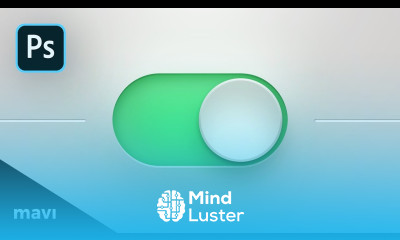
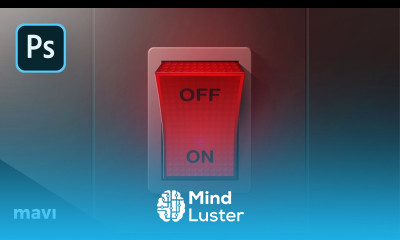
Photoshop realistic switch button

Track :

Web Design

Course Presenter :

Mavi Design

Lessons no : 12

For Free Certificate After Complete The Course

To Register in Course you have to watch at least 30 Second of any lesson

Join The Course Go To Community Download Course Content

What will you learn in this course?
  • Create photorealistic switch buttons in Photoshop using layer styles, gradients, and shadows for realistic UI design
  • Design toggle and power buttons with 3D effects, highlights, and reflections for web and mobile interfaces

  • Apply advanced Photoshop techniques like bevel & emboss, inner shadows, and gradient overlays to enhance button depth
  • Simulate real materials such as plastic and metal with textures, lighting effects, and subtle reflections
  • Organize layers efficiently for easy editing and customization of switch button designs
  • Develop skills to create “on” and “off” states for toggle buttons with consistent visual style
  • Utilize Photoshop tools to craft polished, professional-quality UI components for product mockups
  • Enhance user interface designs with realistic, tactile switch buttons suitable for web, app, and interface projects

How to Get The Certificate

  • You must have an account Register
  • Watch All Lessons
  • Watch at least 50% of Lesson Duration
  • you can follow your course progress From Your Profile
  • You can Register With Any Course For Free
  • The Certificate is free !
Lessons | 12


We Appreciate Your Feedback

Be the First One Review This Course

Excellent
0 Reviews
Good
0 Reviews
medium
0 Reviews
Acceptable
0 Reviews
Not Good
0 Reviews
0
0 Reviews

Sadou Diallo

Nice
2025-07-18

Our New Certified Courses Will Reach You in Our Telegram Channel
Join Our Telegram Channels to Get Best Free Courses

Join Now

Related Courses

Photoshop realistic switch button, in this course we will learn about creating a realistic switch button in Photoshop. You’ll discover how to design a photorealistic UI toggle or power button using layer styles, gradients, shadows, and highlights to give it a 3D and tactile appearance. We’ll begin with the basic shape using the Ellipse Tool and build up depth using techniques like inner shadows, bevel & emboss, and gradient overlays. You'll also learn how to add subtle reflections, textures, and lighting effects to simulate real materials like plastic or metal. The course will guide you through creating both “on” and “off” states of the button and how to organize layers for easy editing. Whether you're designing for web interfaces, mobile apps, or product mockups, this course will help you master the tools and techniques to create polished, realistic buttons in Photoshop. By the end, you'll be able to design professional-quality UI components that stand out. Mavi Design