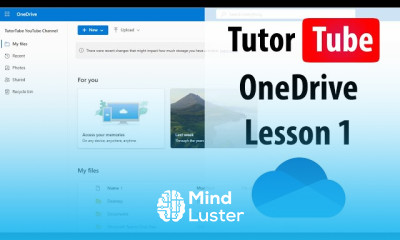
Microsoft OneDrive image cropping essentials Course

 (24 reviews)
-
 50 Lessons
-
 4 Students
- Certificate of completion


Microsoft OneDrive image cropping course, in this course we will explore the process of Microsoft OneDrive image cropping, teaching you how to efficiently edit and enhance your images directly within the OneDrive platform. You will learn how to access the image cropping tool, select and adjust the areas of your images, and apply the crop to focus on the most important parts of your photos. This course will guide you through various cropping techniques, such as resizing images for different formats, removing unwanted backgrounds, and improving the overall composition of your visuals. We will also cover how to use OneDrive’s built-in features to save and manage your edited images, ensuring they are optimized for sharing, printing, or further editing. By the end of this course, you’ll be able to use Microsoft OneDrive to crop and refine your images with ease, making it a convenient tool for personal and professional use alike. Whether you're working with photos, documents, or any visual content, this course will equip you with the skills to make the most out of OneDrive's image editing capabilities.
 To Register in Course you have to watch at least 30 Second of any lesson
What You'll Learn
-
 Master how to access and utilize Microsoft OneDrive's image cropping tools for efficient photo editing and enhancement
-
Apply cropping techniques to improve image composition, focus on key elements, and resize images for various formats
-
Remove unwanted backgrounds and unwanted areas from images using OneDrive's built-in editing features
-
Adjust and fine-tune image areas to enhance visual appeal and ensure optimal framing for different purposes
-
Save, organize, and manage cropped images within OneDrive for easy sharing, printing, or further editing
-
Optimize images for professional presentations, social media, and personal projects directly within OneDrive
-
Implement best practices for cropping to improve overall image quality and visual storytelling
-
Utilize OneDrive's editing features to streamline workflow and increase productivity in visual content management
-
Identify and correct common cropping issues to produce polished, professional-looking images
-
Leverage OneDrive's sharing options to distribute edited images securely and efficiently
-
Integrate image cropping skills into broader digital content creation and document management workflows
-
Evaluate and select appropriate cropping techniques to meet specific project or presentation requirements
Course Content
50 Lessons • 2 h 14 m total

Microsoft OneDrive Lesson 1 Accessing Microsoft OneDrive from a Web Browser
Microsoft OneDrive Lesson 2 Exploring the Web Interface
Microsoft OneDrive Lesson 3 Exploring OneDrive Web Settings
Microsoft OneDrive Lesson 4 Uploading Files and Folders from the Web Interface
Microsoft OneDrive Lesson 5 Enabling and Accessing Personal Vault
Microsoft OneDrive Lesson 6 Closing Personal Vault Manually
Microsoft OneDrive Lesson 7 Personal Vault Settings
Microsoft OneDrive Lesson 8 Hiding For You Section
Microsoft OneDrive Lesson 9 Files View Options
Microsoft OneDrive Lesson 10 Moving Files and Folders
Microsoft OneDrive Lesson 11 Renaming Files and Folders
Microsoft OneDrive Lesson 12 Copying Files and Folders
Microsoft OneDrive Lesson 13 Download Files and Folders
Microsoft OneDrive Lesson 14 Delete and Recover Files
Microsoft OneDrive Lesson 15 Creating a Share Link to Share Files and Folders
Microsoft OneDrive Lesson 16 Sharing Files with Specific People
Microsoft OneDrive Lesson 17 Accessing Info Section and changing Share Settings
Microsoft OneDrive Lesson 18 Mention or Comment
Microsoft OneDrive Lesson 19 Searching for Files
Microsoft OneDrive Lesson 20 Turning File Search History On or Off
Microsoft OneDrive Lesson 21 Embed your Files or Folder in a Web Page
Microsoft OneDrive Lesson 22 Adding and Editing Tags
Microsoft OneDrive Lesson 23 Add and Remove as Cover for Folders
Microsoft OneDrive Lesson 24 Cropping Images
Microsoft OneDrive Lesson 25 Image Adjustment Options
Microsoft OneDrive Lesson 26 Applying Image Filters
Microsoft OneDrive Lesson 27 Adding Markups
Microsoft OneDrive Lesson 28 Rotate Picture without Opening Image Editor
Microsoft OneDrive Lesson 29 Creating and Managing Photo Albums
Microsoft OneDrive Lesson 30 Creating Microsoft Office Documents
Microsoft OneDrive Lesson 31 Microsoft Office Online Documents and OneDrive File Save Process
Microsoft OneDrive Lesson 32 Save Outlook Attachments directly to OneDrive
Microsoft OneDrive Lesson 33 Replacing and Keeping Duplicate Files
Microsoft OneDrive Lesson 34 Version History
Microsoft OneDrive Lesson 35 Creating Album from Folder
Microsoft OneDrive Lesson 36 Track and Manage Shared Files
Microsoft OneDrive Lesson 37 Notification Settings
Microsoft OneDrive Lesson 38 Attach Files in Teams Directly from OneDrive
Microsoft OneDrive Lesson 39 Installing Desktop Version of Onedrive
Microsoft OneDrive Lesson 40 Setting up OneDrive in Desktop

How to Get The Certificate
-
You must have an
Account
on the platform.
-
Complete all lessons.
-
Watch at least 50% of Lesson Duration.
-
Get your Certificate free 🎉 !
4.4
(24 reviews)
Overall rating

Reviews
Be the First One Review This Course
Related Courses
View All
















Microsoft OneDrive image cropping essentials Course Description
Microsoft OneDrive image cropping course, in this course we will explore the process of Microsoft OneDrive image cropping, teaching you how to efficiently edit and enhance your images directly within the OneDrive platform. You will learn how to access the image cropping tool, select and adjust the areas of your images, and apply the crop to focus on the most important parts of your photos. This course will guide you through various cropping techniques, such as resizing images for different formats, removing unwanted backgrounds, and improving the overall composition of your visuals. We will also cover how to use OneDrive’s built-in features to save and manage your edited images, ensuring they are optimized for sharing, printing, or further editing. By the end of this course, you’ll be able to use Microsoft OneDrive to crop and refine your images with ease, making it a convenient tool for personal and professional use alike. Whether you're working with photos, documents, or any visual content, this course will equip you with the skills to make the most out of OneDrive's image editing capabilities.
Focus on Learning, Not Ads
Experience the full power of Mindluster with Premium.
No distractions, just pure education.
Cancel your subscription anytime
