


ANORLD MALATA
Excellent Practical Explanations
 (34 reviews)
 28 Lessons
 3 Students
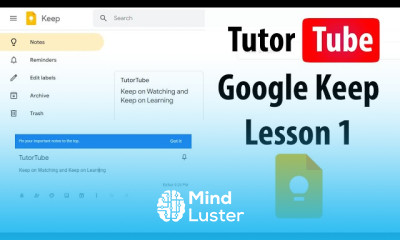
Adding collaborators in google keep course, in this course we will explore the essential steps to Adding Collaborators in Google Keep and how to make the most of this powerful collaboration feature. You will learn how to easily share your notes with others, allowing them to view, edit, and contribute in real-time. We will guide you through the process of adding collaborators to your notes, whether for work projects, shared to-do lists, or group brainstorming sessions. The course covers best practices for managing collaborators, such as setting permissions and organizing shared notes efficiently. You’ll also discover how to remove collaborators when needed and ensure that your notes remain secure. By the end of this course, you’ll be able to seamlessly collaborate with others in Google Keep, making it a valuable tool for both personal and professional use. Whether you’re planning with colleagues, coordinating with family, or working on group projects, this course will equip you with the skills to effectively use Google Keep’s collaboration features.
 To Register in Course you have to watch at least 30 Second of any lesson
 Master how to add collaborators to Google Keep notes for seamless sharing and teamwork
Apply best practices for managing permissions and organizing shared notes efficiently in Google Keep
Demonstrate how to edit and contribute to shared notes in real-time using Google Keep collaboration features
Implement security measures to protect shared notes and control access in Google Keep
Utilize Google Keep to coordinate group projects, work tasks, and personal planning with collaborators
Remove or update collaborators to maintain note security and manage team access effectively
Integrate Google Keep with other Google Workspace tools for enhanced collaboration and productivity
Troubleshoot common issues related to sharing and collaboration in Google Keep
Optimize note organization and sharing strategies for both personal and professional use in Google Keep
Evaluate the benefits of Google Keep collaboration features to improve team communication and project management
28 Lessons • 1 h 0 m total
 You must have an
Account
on the platform.
Complete all lessons.
Watch at least 50% of Lesson Duration.
Get your Certificate free 🎉 !
4.5
(34 reviews)
Overall rating

Be the First One Review This Course
Excellent Practical Explanations

Adding collaborators in google keep course, in this course we will explore the essential steps to Adding Collaborators in Google Keep and how to make the most of this powerful collaboration feature. You will learn how to easily share your notes with others, allowing them to view, edit, and contribute in real-time. We will guide you through the process of adding collaborators to your notes, whether for work projects, shared to-do lists, or group brainstorming sessions. The course covers best practices for managing collaborators, such as setting permissions and organizing shared notes efficiently. You’ll also discover how to remove collaborators when needed and ensure that your notes remain secure. By the end of this course, you’ll be able to seamlessly collaborate with others in Google Keep, making it a valuable tool for both personal and professional use. Whether you’re planning with colleagues, coordinating with family, or working on group projects, this course will equip you with the skills to effectively use Google Keep’s collaboration features.
Experience the full power of Mindluster with Premium.
No distractions, just pure education.
Cancel your subscription anytime