
 18 Lessons
 213 Students





Itz nikhil Raj
Excellent
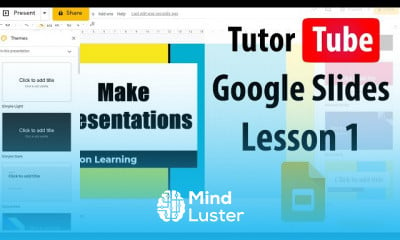
Google Slides is a presentation program included as part of the free, web-based Google Docs Editors suite offered by Google. The service also includes Google Docs, Google Sheets, Google Drawings, Google Forms, Google Sites, and Google Keep.What do Google Slides do? Google Slides is an online presentation app that lets you create and format presentations and work with other people.What is the Google equivalent of PowerPoint? Google Slides Google Slides is just as easy to use as PowerPoint and Keynote, plus, it also gives you the ability to collaborate from wherever you and your team members are in the world.How do you effectively use Google Slides? Here's a roundup 10 tips to help you defeat mediocrity and start using Google Slides like a pro. ... Level Up How You're Using Google Slides Enhance Text with Drop Shadow. ... Edit Using the Master Slides Tool. ... Use Image Masking. ... Bookmark Key Text. ... Dictate Each Slide.Can anyone use Google Slides? Before you can use Google Slides, you have to sign up for a Google account (an @gmail account). If you already have one, feel free to move on to the next section. If not, we'll go over the simplest way to create a Google account and get you set up with Slides.Why is Google Slides better than PowerPoint? Google Slides offers basic animations and transitions which are quite fewer in comparison with its rival PowerPoint. ... PowerPoint, in contrast, is an advanced software with many more features and special effects (reflections, 3D, fancy transitions) which are only available in the desktop-based version.How do you write on Google Slides? Step 1. Insert Text Open the Google Slides presentation you want to work with. ... Layout options for a Google Slide. ... A blank slide. ... The cursor should look like a cross hair. ... Click in the text box and type your text. ... Drag your cursor over the text to select it. ... A drop-down menu listing various fonts appears.
 To Register in Course you have to watch at least 30 Second of any lesson
 Create, format, and customize Google Slides presentations for effective communication and visual storytelling.
Collaborate seamlessly with team members using real-time editing and sharing features.
Apply advanced slide design techniques, including master slides, image masking, and text enhancements.
Utilize Google Slides tools to add animations, transitions, and multimedia elements for engaging presentations.
Implement best practices for organizing content, bookmarking key points, and dictating slides for efficiency.
Optimize Google Slides for different audiences and purposes with layout and style adjustments.
Troubleshoot common issues and enhance productivity using keyboard shortcuts and editing tips.
Integrate Google Slides with other Google Workspace apps for streamlined workflow and project management.
18 Lessons • 52 m total
 You must have an
Account
on the platform.
Complete all lessons.
Watch at least 50% of Lesson Duration.
Get your Certificate free 🎉 !
4.2
 (6 reviews)
Overall rating

Be the First One Review This Course
Excellent

Good

El curso está bien
Nice
Good

g
f
Nice
Great

VERY INFORMATIVE

Nice

Good coures for beginers

Google Slides is a presentation program included as part of the free, web-based Google Docs Editors suite offered by Google. The service also includes Google Docs, Google Sheets, Google Drawings, Google Forms, Google Sites, and Google Keep.What do Google Slides do? Google Slides is an online presentation app that lets you create and format presentations and work with other people.What is the Google equivalent of PowerPoint? Google Slides Google Slides is just as easy to use as PowerPoint and Keynote, plus, it also gives you the ability to collaborate from wherever you and your team members are in the world.How do you effectively use Google Slides? Here's a roundup 10 tips to help you defeat mediocrity and start using Google Slides like a pro. ... Level Up How You're Using Google Slides Enhance Text with Drop Shadow. ... Edit Using the Master Slides Tool. ... Use Image Masking. ... Bookmark Key Text. ... Dictate Each Slide.Can anyone use Google Slides? Before you can use Google Slides, you have to sign up for a Google account (an @gmail account). If you already have one, feel free to move on to the next section. If not, we'll go over the simplest way to create a Google account and get you set up with Slides.Why is Google Slides better than PowerPoint? Google Slides offers basic animations and transitions which are quite fewer in comparison with its rival PowerPoint. ... PowerPoint, in contrast, is an advanced software with many more features and special effects (reflections, 3D, fancy transitions) which are only available in the desktop-based version.How do you write on Google Slides? Step 1. Insert Text Open the Google Slides presentation you want to work with. ... Layout options for a Google Slide. ... A blank slide. ... The cursor should look like a cross hair. ... Click in the text box and type your text. ... Drag your cursor over the text to select it. ... A drop-down menu listing various fonts appears.
Experience the full power of Mindluster with Premium.
No distractions, just pure education.
Cancel your subscription anytime