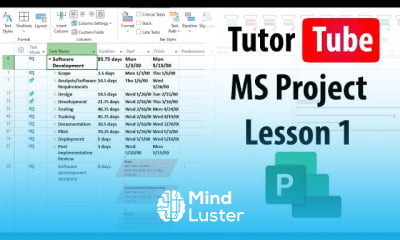
Inserting tables in microsoft project Course

 (62 reviews)
-
 132 Lessons
-
 22 Students
- Certificate of completion


Inserting tables in microsoft project course, in this course we will explore the essential techniques for inserting and managing tables in Microsoft Project. Microsoft Project is a powerful tool for project management, and understanding how to effectively insert and utilize tables can significantly enhance your ability to organize and present project data. We will start by guiding you through the basics of table insertion, including selecting the appropriate table for your project needs and customizing it to display the relevant fields. You'll learn how to create custom tables, format them for clarity, and efficiently input and manage data within these tables. The course will also cover advanced topics such as linking tables to specific tasks, resources, and timelines, as well as best practices for using tables to track project progress and performance. By the end of this course, you will be equipped with the knowledge to confidently insert and manipulate tables in Microsoft Project, helping you to better organize and present your project information. Join us to master table insertion and take your project management skills to the next level.
 To Register in Course you have to watch at least 30 Second of any lesson
What You'll Learn
-
 Create and insert various table types in Microsoft Project for effective project data organization and presentation
-
Customize tables by adding, removing, and formatting fields to suit specific project management needs
-
Design and implement custom tables to track tasks, resources, and project timelines efficiently
-
Link tables to tasks, resources, and timelines to enhance project data integration and visibility
-
Manage and update project data within tables to monitor progress and performance accurately
-
Format tables for clarity, readability, and professional presentation in Microsoft Project reports
-
Utilize table features to filter, sort, and analyze project information for better decision-making
-
Apply best practices for inserting and managing tables to improve overall project management workflows
Course Content
132 Lessons • 6 h 28 m total

Microsoft Project Lesson 1 Touring the Interface
Microsoft Project Lesson 2 Starting a New Project and Listing Tasks
Microsoft Project Lesson 3 Using Templates
Microsoft Project Lesson 4 Changing Work Time in Standard Calendar
Microsoft Project Lesson 5 Creating a New Calendar
Microsoft Project Lesson 6 Defining Non Working Days
Microsoft Project Lesson 7 Defining Recurring Exceptions
Microsoft Project Lesson 8 Setting Calendar Option for Project
Microsoft Project Lesson 9 Creating Sub Groups of Tasks
Microsoft Project Lesson 10 Linking Tasks and utilizing Automatic Scheduled Tasks
Microsoft Project Lesson 11 Manual Scheduled Tasks
Microsoft Project Lesson 12 Link and Unlink Multiple Tasks
Microsoft Project Lesson 13 Milestone Tasks
Microsoft Project Lesson 14 Summary Tasks
Microsoft Project Lesson 15 Showing and Hiding Summary Tasks and Outline Number
Microsoft Project Lesson 16 Viewing Different Levels of Task Outlines
Microsoft Project Lesson 17 Pasting Tasks from Clipboard Directly
Microsoft Project Lesson 18 Rearranging Tasks
Microsoft Project Lesson 19 Deleting and Restoring Tasks
Microsoft Project Lesson 20 Enabling WBS Numberings
Microsoft Project Lesson 21 Modifying WBS Numbering Format
Microsoft Project Lesson 22 Linking More than One Tasks Together
Microsoft Project Lesson 23 Setting Predecessors Type
Microsoft Project Lesson 24 Adding Lag Time
Microsoft Project Lesson 25 Scroll to Task
Microsoft Project Lesson 26 Setting Constraint on Task Dates
Microsoft Project Lesson 27 Changing the Timescale
Microsoft Project Lesson 28 Highlighting Task Paths
Microsoft Project Lesson 29 Changing Link Layouts
Microsoft Project Lesson 30 Changing Bar Layouts
Microsoft Project Lesson 31 Adding Resource Sheet listing Work Resource List
Microsoft Project Lesson 32 Adding in Material Resources
Microsoft Project Lesson 33 Changing Price Unit in Resource List
Microsoft Project Lesson 34 Material Detail and Accrue Detail
Microsoft Project Lesson 35 Assigning Resource to Tasks to Calculate Cost
Microsoft Project Lesson 36 Adding and Assigning Cost Resource
Microsoft Project Lesson 37 Viewing Resource Usage List and Costs
Microsoft Project Lesson 38 Resource Sorting Options
Microsoft Project Lesson 39 Save and Save As
Microsoft Project Lesson 40 Pinning File in File Open Section

How to Get The Certificate
-
You must have an
Account
on the platform.
-
Complete all lessons.
-
Watch at least 50% of Lesson Duration.
-
Get your Certificate free 🎉 !
4.6
(62 reviews)
Overall rating

Reviews
Be the First One Review This Course
Related Courses
View All















Inserting tables in microsoft project Course Description
Inserting tables in microsoft project course, in this course we will explore the essential techniques for inserting and managing tables in Microsoft Project. Microsoft Project is a powerful tool for project management, and understanding how to effectively insert and utilize tables can significantly enhance your ability to organize and present project data. We will start by guiding you through the basics of table insertion, including selecting the appropriate table for your project needs and customizing it to display the relevant fields. You'll learn how to create custom tables, format them for clarity, and efficiently input and manage data within these tables. The course will also cover advanced topics such as linking tables to specific tasks, resources, and timelines, as well as best practices for using tables to track project progress and performance. By the end of this course, you will be equipped with the knowledge to confidently insert and manipulate tables in Microsoft Project, helping you to better organize and present your project information. Join us to master table insertion and take your project management skills to the next level.
Focus on Learning, Not Ads
Experience the full power of Mindluster with Premium.
No distractions, just pure education.
Cancel your subscription anytime
